Prepare the laptop
Download the required programs
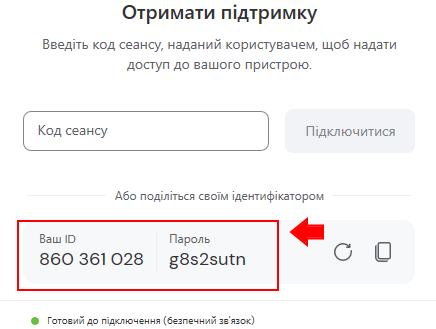
TeamViewer QuickSupport
Secure remote access to your laptop. Runs without installation.
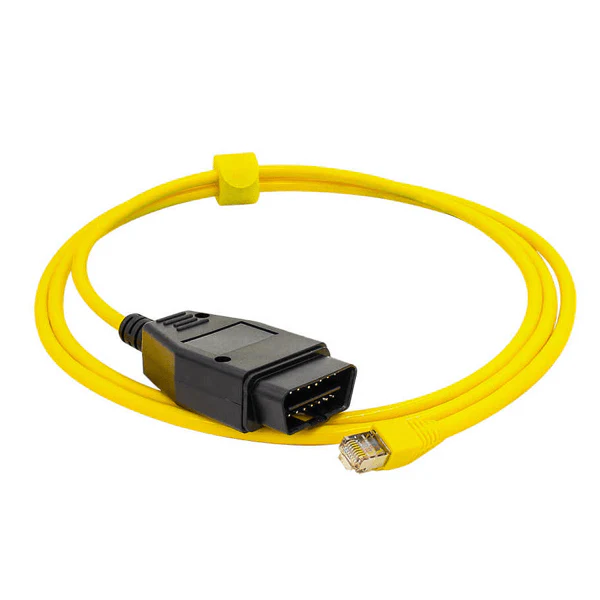
Remote ENET
Creates a connection between the vehicle and our specialist. No installation is required.
Complete 4 simple steps: download two programs, connect the cable, launch TeamViewer and send the connection details to our specialist.
OBD → EthernetSave both programs to your desktop. Launch TeamViewer yourself; our specialist will use Remote ENET during the session.
Prepare the laptop
Secure remote access to your laptop. Runs without installation.
Creates a connection between the vehicle and our specialist. No installation is required.
Connect the vehicle
It is located in the lower dashboard area on the driver's side.
Make sure the plug is fully seated and secure.
If the laptop has no Ethernet port, use a USB-to-Ethernet adapter.
Do not start the engine unless the specialist asks you to.

Remote access
Allow the app to run if Windows displays a prompt.
Keep the TeamViewer window open during the session.
Only send these details through the official BMW-Power support chat.

Final check
Send the TeamViewer ID and password to the specialist, then wait for the connection.
Do not disconnect the cable or switch off the ignition during the session. Wait until the specialist confirms that the work is complete.
No. Both programs run without installation. Simply save them to your desktop.
Connect ENET to the Ethernet port and use Wi-Fi or a mobile hotspot for internet access.
Use a standard USB-to-Ethernet adapter and connect ENET before launching TeamViewer.
Check the internet connection, close and relaunch TeamViewer. If no ID appears, contact support.