


BMW iDrive 7 and iDrive 8 app installation
Custom apps for BMW MGU run on the head unit itself and open from the original iDrive menu. They do not need a separate display. Your laptop and ENET cable are used for installation and maintenance; you can disconnect them for everyday driving. iDrive 7 and iDrive 8 have separate app catalogues. Select your system version in the form above to see the corresponding selection.
Diagnostics and live vehicle data
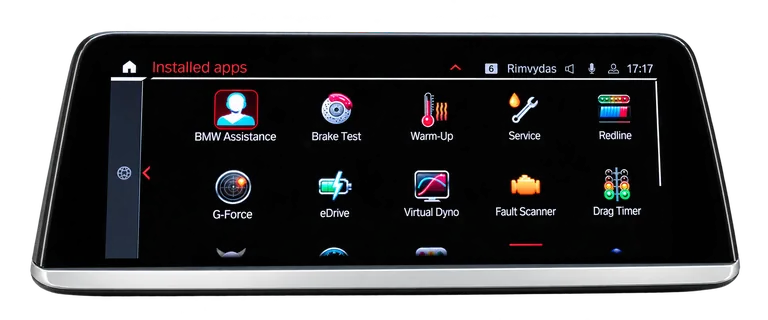
Fault Scanner reads fault codes from control units and shows descriptions where available. Save the information before clearing codes: deleting a code does not fix its cause. Service shows maintenance items, dates and remaining distances, but does not reset service intervals. M Vitals brings together engine and chassis readings, while Warm-Up helps you monitor oil and coolant temperatures. eDrive displays available battery and energy-use data on compatible vehicles.
Acceleration, braking and power measurements
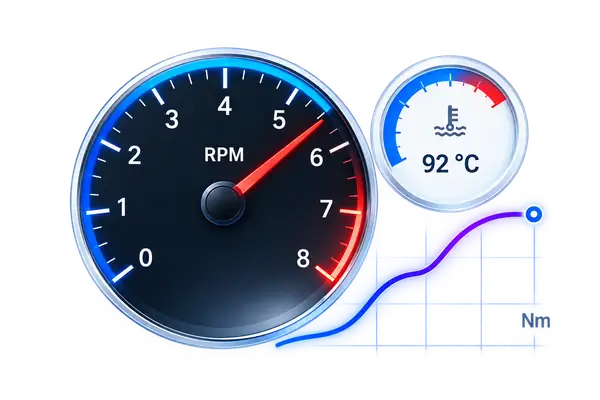
Drag Timer records acceleration runs, Brake Test measures stopping time and distance, and Virtual Dyno calculates power and torque curves. These tools help compare runs in the same car; they do not replace a calibrated dynamometer. Redline adds RPM and shift indicators, while G-Force shows longitudinal and lateral acceleration. The catalogue also includes Live Adjustments and the experimental ZF 8HP app for reading data from a compatible transmission. Their features depend on the relevant vehicle control units.
How installation works through the website
Park your BMW, connect the ENET cable to the car and laptop, open BMW Power Remote and press Start. Enable diagnostic mode by quickly pressing the vehicle’s Start button three times without pressing the brake pedal. Enter the VIN on the website, wait for the connection and choose your apps. Keep the full set or select only the ones you want. App language is independent of website language: choose English, Ukrainian or Russian. Once you accept the installation conditions, the service carries out the required stages and shows progress and messages in your order. Keep ENET, power and internet connected until the job finishes.
Reinstallation and service for your VIN
Your vehicle and order stay in your account. A VIN with paid service can have its apps reinstalled, its status checked and the available maintenance actions run from the order page without another service payment. Connect that same car through Remote each time. A new installation keeps only the service apps you select; other apps from our service are removed after being backed up. BMW’s factory apps are outside this selection.
MGU compatibility and available readings
This service is for BMW MGU with iDrive 7 or iDrive 8 in BDC3 and BCP variants. The app catalogue depends on the iDrive version. The model name alone does not establish compatibility: the head unit’s software also matters. Engine, battery, tyre and transmission readings vary with the vehicle’s equipment — an app cannot supply data the car does not send. An MGU firmware update may require the apps to be installed again. These apps are an independent modification, not a BMW AG product. Take performance measurements only on a closed course and play games only while parked.