BMW K+DCAN

Preparing K+DCAN for remote BMW work

Complete 4 simple steps: download the programs, connect the cable to the vehicle and laptop, launch TeamViewer and send the connection details to our specialist.

  • Windows laptop
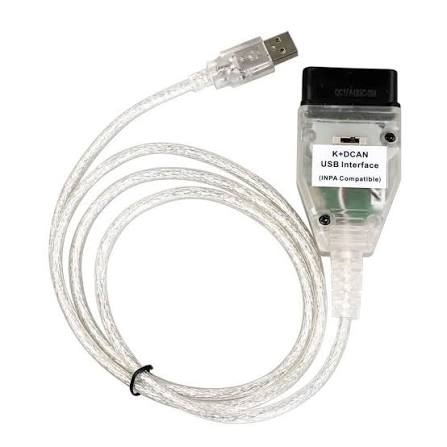
  • BMW K+DCAN
  • Stable internet
  • About 10 minutes
BMW E-seriesBMW K+DCAN USB cable
Do not install the programs yourself

Save all three programs to your desktop. Launch TeamViewer yourself; our specialist will install BMW Standard Tools and the K+DCAN driver during the session.

01

Prepare the laptop

Download the required programs

TeamViewer

Secure remote access to your laptop. Simply download and launch the program.

BMW Standard Tools

Software package for BMW E-series vehicles. Download the file; our specialist will install it.

K+DCAN Driver

Driver that connects the K+DCAN cable to the laptop. Download the archive; our specialist will install it.

Your desktop should now contain TeamViewer, BMW Standard Tools and the K+DCAN driver archive.
02

Connect the vehicle

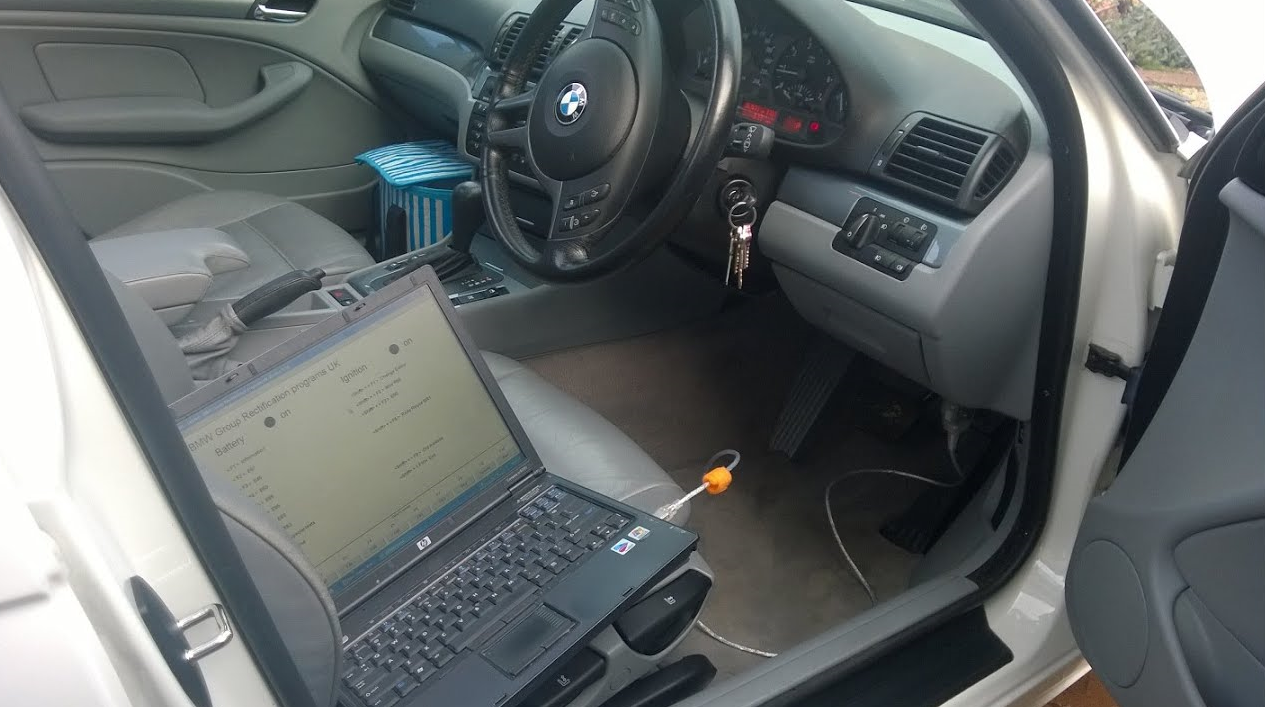
Connect K+DCAN to the BMW and laptop

  1. 1
    Connect the cable to the BMW OBD port

    The OBD port is usually located beneath the steering wheel on the driver's side.

  2. 2
    Connect the USB plug to the laptop

    Connect the cable directly to a laptop USB port whenever possible.

  3. 3
    Switch on the ignition

    Do not start the engine unless the specialist specifically asks you to.

BMW K+DCAN connected to the vehicle
K+DCAN connects the vehicle's OBD port to the laptop's USB port.
03

Remote access

Launch TeamViewer

  1. 1
    Open the downloaded TeamViewer

    Allow the app to run if Windows displays a prompt.

  2. 2
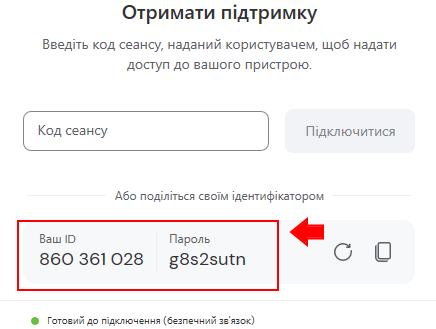
    Find your ID and password

    Keep the TeamViewer window open during the session.

  3. 3
    Send the details to our specialist

    Only send the ID and password through the official BMW-Power support chat.

TeamViewer ID and password
The TeamViewer password is temporary. Close the program after the session.
04

Final check

Everything is ready for the specialist

Ready to start

Send the TeamViewer ID and password to the specialist, then wait for the connection.

  • K+DCAN is connected to the BMW and laptop
  • The ignition is switched on
  • TeamViewer is running
  • The internet connection is stable

Do not disconnect K+DCAN or switch off the ignition during the session. Wait until the specialist confirms that the work is complete.

Helpful notes

Common questions before connecting

Do I need to install the programs myself?

No. Download all files to your desktop and only launch TeamViewer. The specialist will install everything else.

Which vehicles support K+DCAN?

K+DCAN is generally used for BMW E-series vehicles. If you are unsure which cable you need, ask our specialist.

Can I use the internet while K+DCAN is connected?

Yes. K+DCAN uses a USB port, so connect the laptop to the internet using Wi-Fi or a mobile hotspot.

What if TeamViewer does not display an ID?

Check the internet connection, close and relaunch TeamViewer. If no ID appears, contact support.